Web Editor
ProofFrog includes a browser-based editor that gives you a graphical environment for writing and verifying FrogLang files. It runs entirely on your local machine; nothing leaves your computer. The web editor is well-suited to interactive proof development and to exploring the bundled examples, because it keeps the file tree, source code, and proof output in a single window.
Launching
Activate your Python virtual environment first. In every new terminal, run source .venv/bin/activate (macOS/Linux bash/zsh), source .venv/bin/activate.fish (fish), .venv\Scripts\Activate.ps1 (Windows PowerShell), or .venv\Scripts\activate.bat (Windows Command Prompt) before invoking proof_frog. See Installation.
proof_frog web [directory]
The optional [directory] argument sets the working directory the editor treats as its file root; everything you open or verify is resolved relative to that path. Without an argument, the current working directory is used.
The server listens on port 5173 if free, otherwise scans upward for the next available port; the actual URL is printed to the terminal. If the browser does not open automatically, copy that URL by hand. Press Ctrl-C in the terminal to stop the server.
Layout
The editor has four regions.
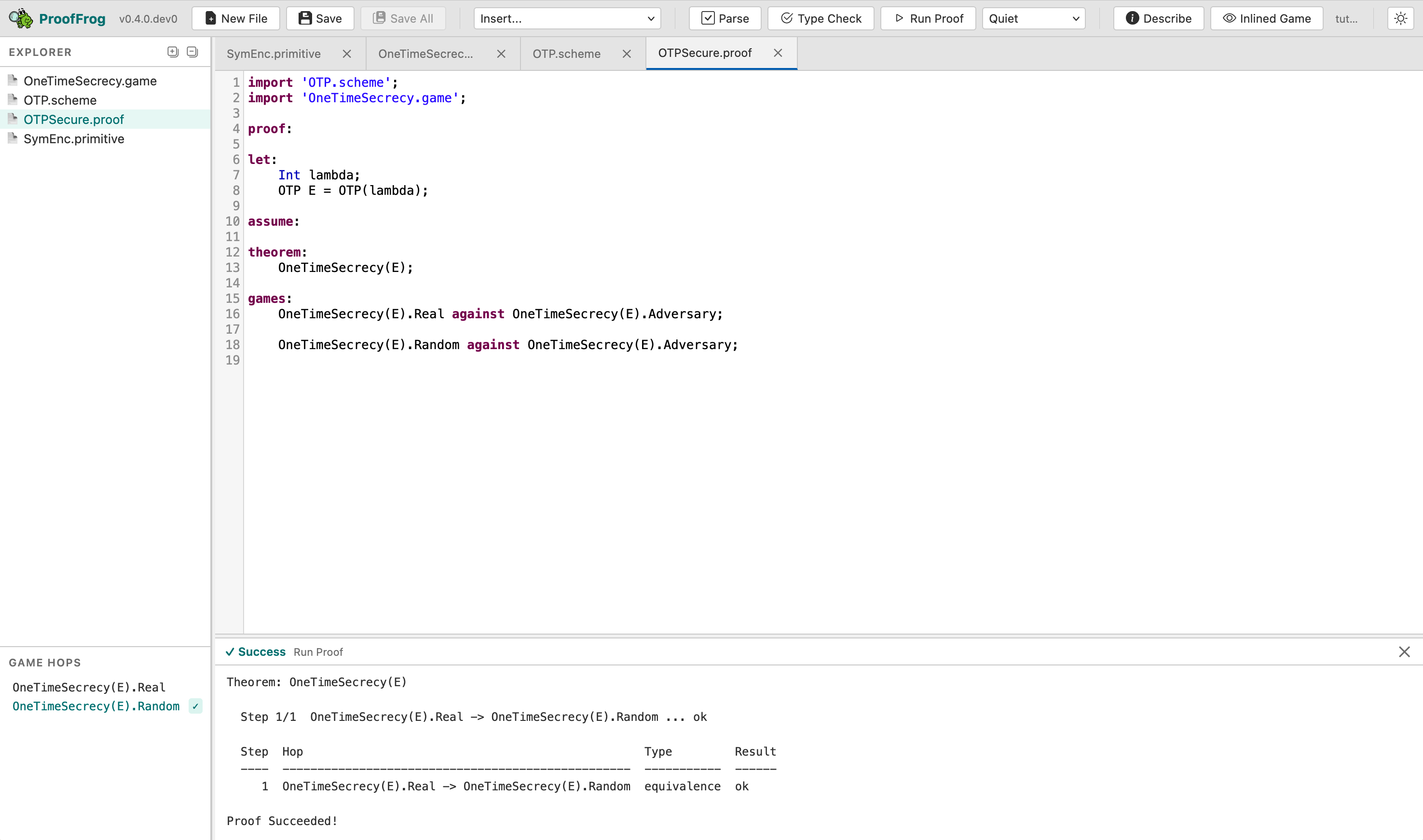
Toolbar (top). File actions (New File, Save, Save All), the Insert wizard dropdown, validation buttons (Parse, Type Check, Run Proof), the Describe button, the current working directory, and a light/dark theme toggle.
File tree (left sidebar). The directory tree rooted at the working directory; click a file to open it. Below the tree, a collapsible Game Hops panel appears when a .proof file is active (see Inspecting hops below).
Editor pane (center). A multi-tab editor with FrogLang syntax highlighting for .primitive, .scheme, .game, and .proof files. Unsaved changes are flagged on the tab. Cmd-S / Ctrl-S saves the active file.
Output pane (bottom). Results from Parse, Type Check, Run Proof, and Describe operations. Closes with the X button and reopens automatically on the next operation.
Editing
The Insert dropdown lists wizards applicable to the active file’s type; choosing one opens a modal that inserts a correctly-structured fragment at the right location. Four creation wizards (Create new primitive / scheme / game / proof) appear only on an empty file. The remaining wizards are file-type-filtered and shown when a matching file is open: Add import, Add primitive method, Add scheme method, Add game oracle method, Insert reduction hop, New reduction stub, New intermediate game stub, Add assumption, Add lemma.
The New File button takes a folder, base name, and extension and creates an empty file. Save writes the active tab; Save All writes every modified tab.
Validation buttons
Three toolbar buttons verify the active file at increasing levels of depth:
- Parse — checks that the file is syntactically valid FrogLang, and shows the parse-error position if not.
- Type Check — runs semantic analysis and reports whether the file is well-formed or shows the first type error.
- Run Proof — available only for
.prooffiles. Verifies every hop in thegames:sequence. A verbosity selector next to the button picks Quiet, Verbose, or Very Verbose output.
Each button corresponds to a CLI command (parse, check, prove); see the CLI Reference for details on the equivalent commands.
Inspecting hops
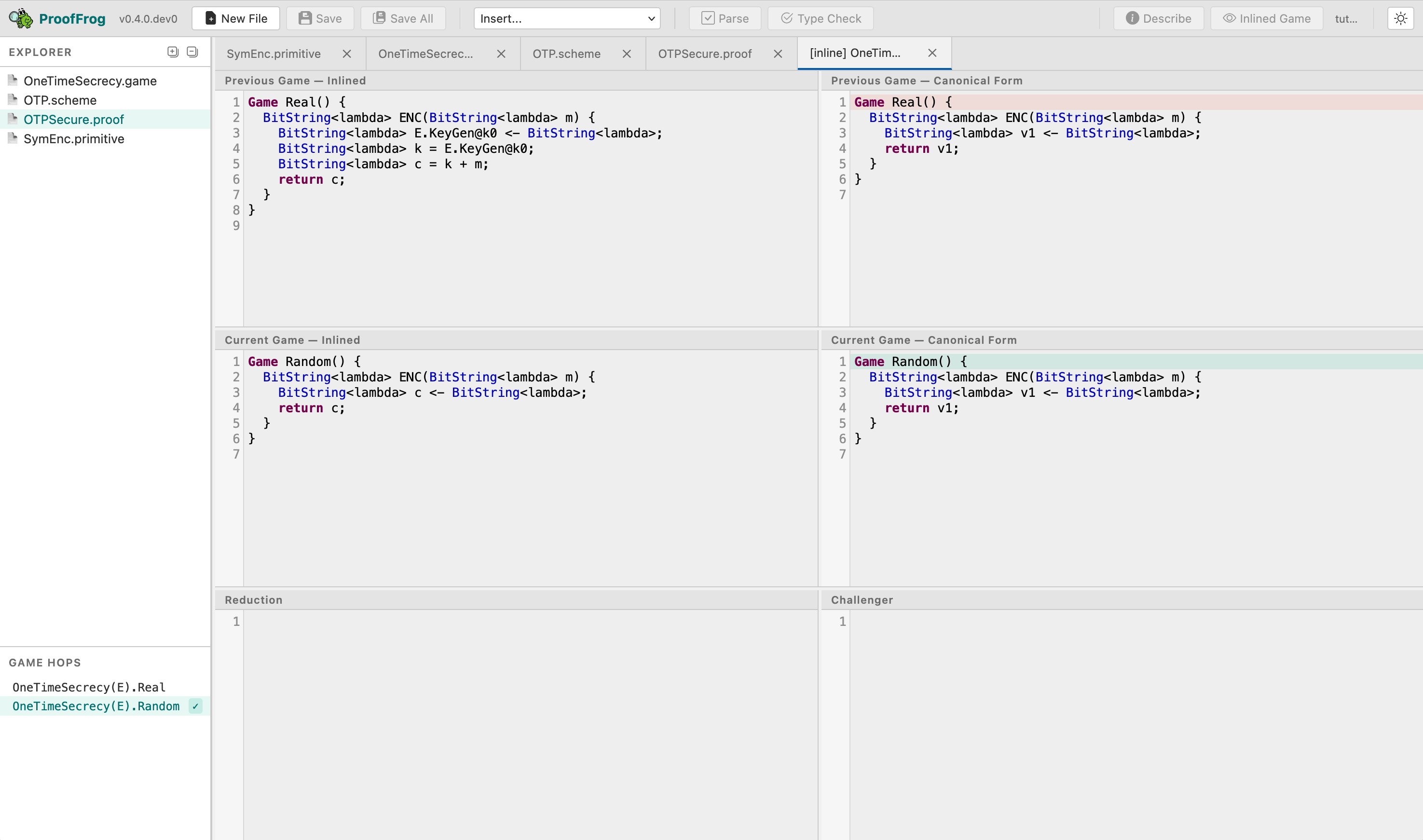
After Run Proof completes, the Game Hops panel in the left sidebar lists every step in the proof’s games: block, color-coded by result (green for passing, red for failing). Clicking a hop opens a detail view that shows:
- The two game steps on each side of the hop.
- The canonical form of each game after the full canonicalization pipeline has run — this is exactly what the engine compares when checking interchangeability.
- For assumption hops, the assumption that justifies the transition.
This is the fastest way to diagnose a failing hop: compare the two canonical forms side by side and look for the first structural difference.
Describe shows a concise interface summary of the active file (type parameters, oracle names and signatures). Useful for confirming what a primitive or game exposes before writing a proof.
Limitations of the web editor
The web editor is constrained to a single working directory chosen at startup; file access outside it and to dot-files is denied. Some CLI-only diagnostic commands (step-detail, inlined-game, canonicalization-trace, step-after-transform) have no web-editor equivalent; see Engine Internals for details on those tools.